The Importance of Using Google Search Console for Your Website
Table of Contents
Introduction
If you have a website, showing up on Google isn’t optional—it’s everything.
That’s where Google Search Console comes in. Think of it as your behind-the-scenes control panel for how your site performs in search. It helps you understand what keywords bring people to your site, shows you when Google runs into issues, and gives you the data you need to grow traffic without guesswork.
In this article, you will learn:
- What Google Search Console is and why it matters for every site
- The most useful features for improving visibility and fixing SEO issues
- How to start using it to get measurable results
By the end, you’ll know exactly why Google Search Console is a must-have tool—and how to put it to work for your website.
What is Google Search Console?
At its core, Google Search Console (GSC) is a free tool from Google that helps you understand how your website appears in search results. If Google can’t find, read, or index your pages properly, your site won’t show up where you want it to—and that’s exactly what GSC helps you monitor and improve.
A lot of beginners confuse Google Search Console with Google Analytics, but they’re not the same thing. Google Analytics tells you what happens after someone lands on your site (page views, time on site, conversions). Google Search Console, on the other hand, focuses on the before: how users discover your site through Google search, which queries trigger your pages, and whether Google’s crawlers can actually access your content.
Why does this matter?
Because SEO success starts with visibility. Without Search Console, you’re flying blind. With it, you can:
- See the exact search terms people use to find your site
- Spot indexing errors that keep pages out of Google
- Get alerts about mobile usability issues or security problems
- Monitor whether your optimization efforts are paying off
Put simply, if you care about getting traffic from Google, Search Console isn’t optional—it’s your foundation.
Why Google Search Console Matters for SEO Success
If you want your website to grow, you need to know how Google sees it. That’s the core reason why Google Search Console is such a game-changer for SEO. It bridges the gap between what you think your site is doing and what’s actually happening in search results.
Here’s why it matters:
- It shows you real search performance. Instead of guessing which keywords drive traffic, you see the exact queries, impressions, and clicks your site gets from Google. For example, a blog post might show up for 200 different keywords, but GSC will highlight which 10 are bringing in the most clicks—so you know where to focus your optimization.
- It helps you catch problems early. Crawl errors, duplicate content, or missing sitemaps can quietly tank your rankings. GSC flags these issues quickly, whether it’s a page not being indexed or a mobile usability problem that frustrates visitors, so you can fix them before they cost you traffic.
- It improves your decision-making. Every SEO strategy involves choices: which pages to optimize, which keywords to target, where to spend your time. With GSC data, you can see if a product page is slipping in rankings or if a blog article is suddenly gaining traction—then act on it.
Whether you’re a beginner learning SEO basics or a marketer managing multiple sites, Search Console keeps you from flying blind. Instead of guessing what Google thinks of your site, you can see it clearly—and take action.
Key Features of Google Search Console You Should Be Using
One of the biggest strengths of Google Search Console is that it doesn’t just give you raw data—it gives you actionable insights. Here are the features you should be paying attention to if you want to improve your site’s SEO.
Performance Report
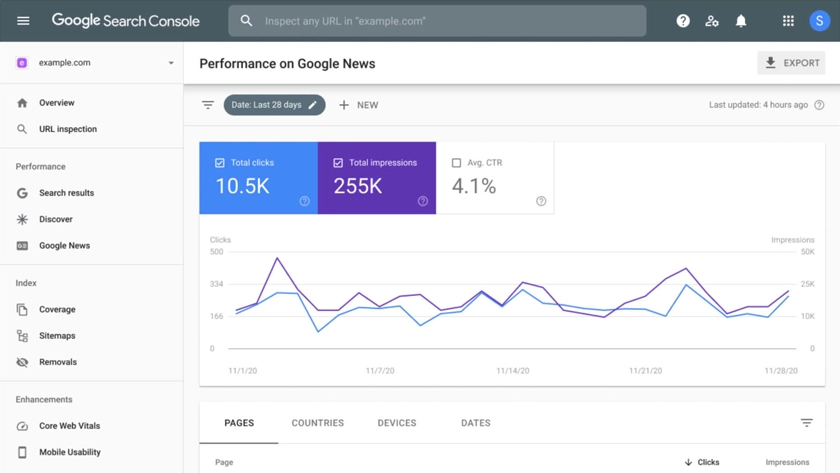
When you open Google Search Console, the Performance Report is front and center. You’ll see a line graph that tracks four key metrics over time:
- Clicks → How many users clicked your site from Google.
- Impressions → How often your pages appeared in search results.
- CTR (Click-Through Rate) → The percentage of impressions that turned into clicks.
- Average Position → Where your page usually ranks.
Screenshot-style description: Imagine a graph where one line shows impressions climbing while another line shows clicks staying flat—that’s a clear sign you’re showing up in results but not convincing people to click.
URL Inspection Tool
This tool has a simple input bar at the top of GSC. Paste in any URL from your site, and you’ll get a detailed breakdown of whether Google has indexed it, how it was crawled, and if there are any errors.
- If it’s indexed → You’ll see a green checkmark.
- If it’s not → You’ll see notes like “Discovered – currently not indexed.”
This is also where you’ll find the Request Indexing button to speed up the process when you publish or update a page.
Coverage Report
Think of this as your error log. The report uses red, yellow, and green bars to show the status of your pages:
- Error (red) → Pages Google couldn’t index.
- Valid with warnings (yellow) → Pages indexed, but with issues.
- Valid (green) → Pages successfully indexed.
- Excluded (gray) → Pages intentionally left out, like those blocked by robots.txt.
Screenshot-style description: If you see a spike of red bars in the graph, that means Google suddenly had trouble indexing parts of your site—time to investigate.
Sitemaps
Under the “Sitemaps” tab, you’ll see a simple field to submit your XML sitemap. Once submitted, GSC shows the status of your sitemap and how many pages Google has discovered from it. This is especially helpful for large sites where crawling every page can be tricky.
Mobile Usability
This report highlights issues affecting mobile visitors. You’ll see a graph with green bars (valid pages) and red bars (errors). Common problems include:
- Text too small to read
- Clickable elements too close together
- Content wider than the screen
Screenshot-style description: If your site looks great on desktop but the red bar spikes here, it means your mobile experience is hurting your SEO.
Links Report
This report is split into two parts:
- External Links → Sites linking back to you.
- Internal Links → How your own pages link to each other.
You’ll see a list of your top linked pages, both externally and internally. This helps you identify your strongest content and where you can improve linking strategies.
How Google Search Console Helps Improve Website Performance
Knowing where your site stands is one thing—improving it is another. The real power of Google Search Console comes from using the data and reports to make meaningful changes that boost your SEO performance.
Here are some of the biggest ways GSC helps:
Identifying and Fixing Technical SEO Errors
If Google can’t crawl or index your site, it won’t matter how great your content is. The Coverage Report makes it easy to spot 404 errors, redirect issues, or pages blocked by robots.txt.
Example: Imagine you launch a new landing page, but GSC shows “Crawled – currently not indexed.” That means Google has seen the page but hasn’t added it to search results. You could fix this by improving internal links to the page or submitting it through the URL Inspection Tool. Without GSC, you might never know the page wasn’t showing up.
Monitoring Core Web Vitals and Page Experience
GSC tracks Core Web Vitals, which measure how fast and stable your pages load. These metrics may sound technical, but they directly affect rankings and user satisfaction.
- A slow LCP (Largest Contentful Paint) means your main content takes too long to load.
- A poor CLS (Cumulative Layout Shift) means your page “jumps around” as it loads, frustrating visitors.
Example: A blog article may rank on page two because the LCP is over four seconds. After optimizing images and enabling caching, the LCP drops below three seconds. Within weeks, the article climbs into the top 10 results. That’s the kind of impact performance fixes can have.
Tracking Structured Data and Rich Results
Structured data helps Google understand your content better and display rich results like star ratings, recipes, or FAQs. GSC tells you if your markup has errors.
Example: An e-commerce site adds “Product” schema to show star ratings in search. GSC later shows an error: “Missing field: price.” Fixing that single error allows the product listings to display prices and reviews directly in Google results, making them more clickable.
Ensuring Mobile Optimization
With mobile-first indexing, Google primarily judges your site by its mobile experience. The Mobile Usability report highlights problems like small text, overlapping buttons, or unresponsive layouts.
Example: A service business finds out that 20% of its mobile pages have “Clickable elements too close together.” After adjusting button spacing and font sizes, bounce rates drop, and rankings improve for local searches.
By using these reports regularly, Google Search Console becomes more than just a monitoring tool—it’s a step-by-step guide to keeping your site healthy, user-friendly, and competitive in search results.
Using Google Search Console for Keyword Insights
One of the most valuable parts of Google Search Console is its keyword data. Unlike paid SEO tools that only give estimates, GSC shows the exact search queries people typed before clicking (or not clicking) on your site.
Here’s how it works and why it matters:
Finding High-Impression, Low-Click Queries
Inside the Performance Report, you’ll see a table of queries along with impressions, clicks, CTR, and position.
- Impressions = how often your page appeared for a search.
- Clicks = how many times users chose your result.
- CTR = the click-through rate (clicks ÷ impressions).
Example: Suppose a blog post about “email marketing tips” shows up 10,000 times in search (impressions) but only gets 100 clicks (1% CTR). That tells you the content is showing up—but the title or description isn’t convincing people to click. Updating your title tag to something more engaging, like “10 Proven Email Marketing Tips to Boost Open Rates,” could instantly improve results.
Identifying Opportunities for Better Content Targeting
Sometimes you’ll find your page ranking for keywords you didn’t expect. These can be goldmines for content optimization.
Example: An article titled “Best Coffee Brewing Methods” might also rank for “how to make pour-over coffee.” If the page is sitting in position 12 for that query, adding a section dedicated to pour-over coffee could help it break into the top 10 and capture more clicks.
Improving Click-Through Rate (CTR) with Metadata Optimization
Small tweaks to your titles and meta descriptions can lead to big differences in CTR. By comparing CTR against average position in GSC, you can identify pages that should be getting more clicks.
Example: A local business ranks #2 for “plumber in Dallas” but has a 3% CTR. By updating the title from “Reliable Plumbing Services” to “Expert Plumber in Dallas – 24/7 Emergency Services Available,” CTR doubles, and the business sees an immediate uptick in leads.
Tutorial: Where to Find This Data
- Log into Google Search Console.
- Click Performance → Search results.
- Use the Queries tab to see keywords people use.
- Filter by Impressions > 1000 and Position < 20 to find hidden opportunities.
These keyword insights are like an SEO treasure map—you’re not just guessing what might work, you’re seeing exactly where to focus your efforts.
Google Search Console and Indexing: Getting Your Pages Found
Publishing content doesn’t guarantee Google will index it. If a page isn’t indexed, it might as well not exist in search. Google Search Console gives you the tools to make sure your content gets discovered and included in Google’s results.
Submitting URLs for Indexing
When you publish a new blog post or update an existing page, use the URL Inspection Tool in GSC. Paste in your page’s URL, and you’ll see whether it’s already indexed. If not, you’ll see a button to Request Indexing.
Example: You launch a new “About Us” page. Weeks later, it’s still not showing up in Google. Using GSC, you request indexing, and within a few days, the page appears in search results.
Understanding Coverage Issues
The Coverage Report is where you’ll see why some pages aren’t being indexed. Common reasons include:
- Crawled – currently not indexed → Google found the page but hasn’t added it yet.
- Duplicate without user-selected canonical → Google thinks the page is too similar to another.
- Blocked by robots.txt → Your site settings are stopping Google from crawling the page.
Example: An e-commerce store notices dozens of product pages listed as “Excluded – Duplicate without user-selected canonical.” By setting proper canonical tags, the store ensures that each product variation can be indexed correctly, boosting overall visibility.
Making Sure Your Content Appears in Search Results
Even if a page is indexed, it might not show up for the queries you want. This is where combining the Performance Report with the Coverage Report comes in handy. You can see if Google indexed a page but isn’t ranking it for target keywords—and then adjust your optimization strategy.
Example: A blog post is indexed and live, but it’s buried on page five for its target keyword. By adding more internal links, updating the title, and improving content depth, the post climbs to page one within a few months.
Keeping an eye on indexing ensures that your hard work—whether it’s a blog post, service page, or product listing—actually gets found by your audience.
Tracking Backlinks and Internal Linking with Google Search Console
Links are one of the strongest ranking signals in Google’s algorithm. The more high-quality links your site earns—both from outside websites and from your own internal pages—the more authority your site builds. Google Search Console gives you a clear view of both.
Why Backlinks Matter for SEO
Backlinks (links from other websites to yours) act like votes of confidence. A link from a reputable source tells Google, “This site is trustworthy.” GSC’s Links Report shows you which external sites link to your content and which pages they link to.
Example: Suppose you run a marketing blog and notice a backlink from a well-known industry site in GSC. That single link could boost your authority and help your article rank higher for competitive keywords.
Checking Referring Domains and Linking Pages
Inside the Links Report, you’ll see two useful sections:
- Top linking sites → Domains that link to you the most.
- Top linked pages → Pages on your site that receive the most external links.
Example: You might find that most of your backlinks go to your homepage but very few go to your blog posts. That insight can push you to create more “link-worthy” content like in-depth guides, infographics, or case studies.
Optimizing Internal Linking for Better Rankings
Internal links (links from one page on your site to another) are just as important. They guide users through your site and help Google understand which pages are most important. GSC shows which pages get the most internal links, helping you spot weak spots.
Example: If your SEO services page only has a handful of internal links but your homepage has hundreds, you can improve rankings by linking more blog posts and other service pages back to it. Over time, this can push it higher in search results for target keywords.
👉 Tip: At AREDCREATIVE, we often recommend auditing internal links quarterly. Even a small change, like adding links from high-traffic blog posts to a service page, can make a measurable difference.
By paying attention to backlinks and internal links in GSC, you’re not just tracking data—you’re building a stronger, more connected site that performs better in search.
Common Issues Google Search Console Can Help You Fix
One of the most underrated benefits of Google Search Console is how quickly it alerts you to problems that could hurt your site’s visibility. Left unchecked, these issues can quietly eat away at your traffic.
Here are some of the most common problems GSC helps you identify and fix:
404 Errors and Redirect Problems
When a page is removed or its URL changes without a redirect, users (and Google) hit a 404 error page. Too many of these can signal poor site maintenance.
Example: An online store discontinues a product but forgets to redirect the page. GSC flags it as an error. By setting a 301 redirect to a related product, the store keeps both users and search engines happy.
Mobile Usability Errors
Since Google prioritizes mobile-first indexing, mobile usability issues can drag rankings down. GSC highlights problems like text too small to read, content wider than the screen, or clickable elements placed too close together.
Example: A local restaurant’s site looks fine on desktop, but GSC shows “content wider than screen” errors on mobile. Fixing the responsive design ensures their menu page is usable on phones—where most customers are searching.
Security Issues and Manual Actions
If your site is hacked, contains malware, or violates Google’s spam policies, GSC will notify you under the Security & Manual Actions section. These warnings are critical—if left unresolved, your site could be removed from search results.
Example: A blog suddenly loses half its organic traffic. GSC reveals a “Hacked content detected” warning. Cleaning up the hack and requesting a review through GSC restores search visibility within weeks.
Indexing and Coverage Errors
Sometimes Google crawls your site but doesn’t index certain pages. The Coverage Report explains why, whether it’s due to duplicate content, noindex tags, or crawl restrictions.
Example: A company blog notices that several posts aren’t being indexed. GSC shows “Discovered – currently not indexed.” Adding stronger internal links and resubmitting the URLs for indexing fixes the issue.
By regularly checking these reports, you can catch small issues before they snowball into major SEO problems. Think of GSC as your early-warning system—it keeps your site healthy, visible, and competitive.
How to Set Up Google Search Console (Beginner-Friendly Guide)
The best part about Google Search Console is that it’s free and surprisingly easy to set up. Even if you’re not technical, you can get it running in just a few steps.
Here’s how:
Step 1: Sign In
- Go to Google Search Console.
- Sign in with your Google account (preferably the one linked to your website or Google Analytics).
Step 2: Add a Property
When prompted, you’ll see two options:
- Domain → Covers your entire domain (all URLs, subdomains, and protocols like
http/https). - URL Prefix → Covers only a specific URL (e.g.,
https://www.example.com).
👉 For most websites, the Domain property is best since it gives the full picture.
Step 3: Verify Your Site
To prove that you own the site, Google requires verification. Here are the most common methods:
- DNS Verification (for Domain property) → Add a TXT record to your domain’s DNS settings.
- HTML File Upload (for URL Prefix) → Upload a file that Google provides to your site’s root directory.
- HTML Tag → Add a meta tag to your site’s
<head>section. - Google Analytics or Tag Manager → If you already use these, verification can be done with a single click.
Example: A small business owner with no technical team uses the HTML tag method by pasting the code into their WordPress theme’s header. Verification is complete in minutes.
Step 4: Submit Your Sitemap
Once your property is verified, head to the Sitemaps section and submit your XML sitemap (usually found at www.example.com/sitemap.xml). This helps Google crawl your site more efficiently.
Step 5: Explore the Dashboard
After setup, you’ll start seeing data within a few days. The main dashboard will show you:
- Performance metrics (clicks, impressions, CTR)
- Coverage status (indexed vs. error pages)
- Enhancements like Mobile Usability and Core Web Vitals
Pro tip: Link Google Search Console with Google Analytics for even deeper insights into how search traffic interacts with your site.
Setting up GSC may feel technical at first, but once it’s running, it works in the background—collecting the data you need to grow your website.
Best Practices for Using Google Search Console
Once you’ve set up Google Search Console, the real value comes from using it consistently. Think of it like a regular health check-up for your website—the more you use it, the easier it is to spot problems and track progress.
Here are some best practices to follow:
Check Reports Regularly
- Weekly → Review performance data to see what’s working and catch any sudden drops in clicks or impressions.
- Monthly → Audit the Coverage, Mobile Usability, and Core Web Vitals reports to make sure your site remains healthy.
- Quarterly → Look at backlinks and internal links to fine-tune your link strategy.
Example: A business that checks GSC weekly notices a sharp decline in impressions for a service page. By fixing a noindex tag that was accidentally applied, traffic quickly rebounds.
Prioritize Issues by Severity
Not every error requires immediate attention. GSC helps you distinguish between critical problems and minor warnings. Focus first on:
- Pages excluded from indexing
- Security warnings or manual actions
- Mobile usability errors affecting high-traffic pages
Example: If a low-traffic blog post has a coverage issue, it can wait. But if your homepage or a product page is excluded, that’s urgent.
Combine GSC Data with Other Tools
GSC is powerful, but it doesn’t replace SEO tools entirely. Pair its insights with Google Analytics, SEMrush, or Ahrefs to get a complete view.
- GSC = how Google sees your site.
- Analytics = how users behave on your site.
- SEO tools = competitive insights and keyword research.
Use Data to Guide Content Strategy
Don’t just react to problems—use GSC data proactively. Look for:
- High-impression, low-click queries → Optimize titles and meta descriptions.
- Pages ranking just off page one (positions 11–15) → Add content depth or internal links to push them higher.
- Pages with strong backlinks → Strengthen these with additional related content.
Example: A blog post ranking #11 for “website design tips” gets an internal link boost from three other articles. Within two months, it moves into the top 5 and doubles its traffic.
By treating GSC as an ongoing tool rather than a one-time setup, you’ll catch problems early, capitalize on opportunities, and make smarter SEO decisions.
Conclusion
At the end of the day, Google Search Console is more than just a reporting tool—it’s your direct line to understanding how Google sees your website. It shows you which keywords drive traffic, flags technical errors before they cost you rankings, and provides the insights you need to make smarter SEO decisions.
To recap, here are the three biggest takeaways:
- Visibility starts with indexing → If Google can’t see it, it won’t rank.
- Data beats guesswork → GSC shows real queries, clicks, and impressions to guide strategy.
- Ongoing use is key → Regular monitoring helps you catch issues early and stay competitive.
If you’re serious about growing your website, setting up and using Google Search Console is non-negotiable. And if you’d rather not tackle it alone, the team at AREDCREATIVE is here to help. From setup and troubleshooting to full-scale SEO strategy, we make sure your site is not only visible but built to perform.
👉 Ready to get started? Contact AREDCREATIVE today and let’s make your website work smarter in search.
Article by:

You might also like these articles.